 988fe91078
Address review feedback:
- Move Secure Boot download to its own conditional block that checks
  for the secureboot-x86_64 directory, so existing installs pick up
  Secure Boot binaries on the next container restart
- Resolve MENU_VERSION once at the top (from env, menuversion.txt,
  or GitHub API) so it's available to both blocks
- Use curl -fsSL for autoexec.ipxe download to fail on HTTP errors
  instead of silently saving HTML error pages
- Update README note to reflect that Secure Boot downloads run
  independently of menu downloads
docker-netbootxyz




Overview
The netboot.xyz docker image allows you to easily set up a local instance of netboot.xyz. The container is a small helper application written in node.js. It provides a simple web interface for editing menus on the fly, retrieving the latest menu release of netboot.xyz, and enables mirroring the downloadable assets from Github to your location machine for faster booting of assets.
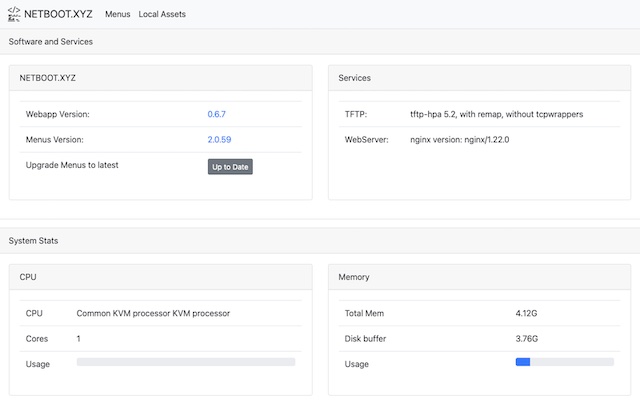
It is a great tool for developing and testing custom changes to the menus. If you have a machine without an optical drive that cannot boot from USB then having a local netboot server provides a way to install an OS. If you are looking to get started with netboot.xyz and don't want to manage iPXE menus, you should use the boot media instead of setting up a container.
The container is built upon Alpine Linux and contains several components:
- netboot.xyz webapp
- Nginx for hosting local assets from the container
- tftp-hpa
- syslog for providing tftp activity logs
Services are managed in the container by supervisord.
The container runs fine under ARM-based hosts as well as x86-64.
Usage
The netboot.xyz docker image requires an existing DHCP server to be setup and running in order to boot from it. The image does not contain a DHCP server service. Please see the DHCP configuration setup near the end of this document for ideas on how to enable your environment to talk to the container. In most cases, you will need to specify the next-server and boot file name in the DHCP configuration. Your DHCP server will need to be assigned a static IP.
Installing docker
To install docker under Debian and Ubuntu run:
sudo apt install docker.io
Download the docker image
From Github Container Registry
docker pull ghcr.io/netbootxyz/netbootxyz
From Docker Hub
docker pull netbootxyz/netbootxyz
The following snippets are examples of starting up the container.
docker-cli
docker run -d \
  --name=netbootxyz \
  -e PUID=1000                       `# optional, UserID for volume permissions` \
  -e PGID=1000                       `# optional, GroupID for volume permissions` \
  -e MENU_VERSION=2.0.84             `# optional` \
  -e NGINX_PORT=80                   `# optional` \
  -e WEB_APP_PORT=3000               `# optional` \
  -p 3000:3000                       `# sets web configuration interface port, destination should match ${WEB_APP_PORT} variable above.` \
  -p 69:69/udp                       `# sets tftp port` \
  -p 8080:80                         `# optional, destination should match ${NGINX_PORT} variable above.` \
  -v /local/path/to/config:/config   `# optional` \
  -v /local/path/to/assets:/assets   `# optional` \
  --restart unless-stopped \
  ghcr.io/netbootxyz/netbootxyz
Updating the image with docker-cli
docker pull ghcr.io/netbootxyz/netbootxyz   # pull the latest image down
docker stop netbootxyz                      # stop the existing container
docker rm netbootxyz                        # remove the image
docker run -d ...                           # previously ran start command
Start the container with the same parameters used above. If the same folders are used your settings will remain. If you want to start fresh, you can remove the paths and start over.
docker-compose
- Copy docker-compose.yml.example to docker-compose.yml
- Edit as needed
- Run
docker compose up -d netbootxyzto start containers in the background
Updating the image with docker compose
docker compose pull netbootxyz     # pull the latest image down
docker compose up -d netbootxyz    # start containers in the background
Accessing the container services
Once the container is started, the netboot.xyz web application can be accessed by the web configuration interface at http://localhost:3000 or via the specified port.
Downloaded web assets will be available at http://localhost:8080 or the specified port. If you have specified the assets volume, the assets will be available at http://localhost:8080.
If you wish to start over from scratch, you can remove the local configuration folders and upon restart of the container, it will load the default configurations.
Local Mirror Access
If you want to pull the Live Images images down from your own mirror, modify the boot.cfg file and override the default live_endpoint setting from https://github.com/netbootxyz and set it to your deployment IP or domain, e.g. http://192.168.0.50:8080. It will then redirect asset download to the local location you set for assets on port 8080 and you can download the assets by using the local assets menu down to your local server. This can result in a much faster boot and load time.
Parameters
Container images are configured using parameters passed at runtime (such as those above). These parameters are separated by a colon and indicate <external>:<internal> respectively. For example, -p 8080:80 would expose port 80 from inside the container to be accessible from the host's IP on port 8080 outside the container.
| Parameter | Function |
|---|---|
-p 3000 |
Web configuration interface. |
-p 69/udp |
TFTP Port. |
-p 80 |
NGINX server for hosting assets. |
-e PUID=1000 |
UserID for volume permissions - see below for explanation |
-e PGID=1000 |
GroupID for volume permissions - see below for explanation |
-e WEB_APP_PORT=3000 |
Specify a different port for the web configuration interface to listen on. |
-e NGINX_PORT=80 |
Specify a different port for NGINX service to listen on. |
-e MENU_VERSION=2.0.76 |
Specify a specific version of boot files you want to use from netboot.xyz (unset pulls latest) |
-e TFTPD_OPTS='--tftp-single-port' |
Specify arguments for the TFTP server (this example makes TFTP send all data over port 69) |
-v /config |
Storage for boot menu files and web application config |
-v /assets |
Storage for netboot.xyz bootable assets (live CDs and other files) |
User / Group Identifiers
When using volumes (-v flags), permissions issues can arise between the host OS and the container. We avoid this issue by allowing you to specify the user PUID and group PGID.
Ensure any volume directories on the host are owned by the same user you specify and any permissions issues will vanish like magic.
In this instance PUID=1000 and PGID=1000, to find yours use id your_user as below:
id your_user
Example output:
uid=1000(your_user) gid=1000(your_user) groups=1000(your_user)
DHCP Configurations
The netboot.xyz Docker image requires the usage of a DHCP server in order to function properly. If you have an existing DHCP server, usually you will need to make some small adjustments to make your DHCP server forward requests to the netboot.xyz container. The main settings in your DHCP or router that you will typically need to set are:
tftp-serveralso known asnext-server, this option tells the client where to look for the boot fileboot-file-name, this option tells the client which boot file to load
Examples
The following are some configuration examples for setting up a DHCP server to get started. The main configuration you will need to change are SERVER_IP_ADDRESS so that DHCP can direct the client to the server running the netboot.xyz Docker container. Because the Docker image is hosting a dnsmasq TFTP server, the boot files are pulled from it and then it will attempt to load the iPXE configs directly from the host. You can then modify and adjust them to your needs. See booting from TFTP for more information.
Setting up dnsmasq
To install dnsmasq as your DHCP server for Debian and Ubuntu, run:
sudo apt install dnsmasq
For Redhat-based systems, run:
sudo dnf install dnsmasq
Set up your configuration file /etc/dnsmasq.conf with the following settings:
# /etc/dnsmasq.conf

# Set the DHCP Range and lease time
dhcp-range=192.168.1.100,192.168.1.200,255.255.255.0,12h

# Set the default gateway
dhcp-option=option:router,192.168.1.1

# Set tne DNS servers
dhcp-option=option:dns-server,8.8.8.8,8.8.4.4

# Standard PC BIOS
dhcp-match=set:bios,60,PXEClient:Arch:00000
dhcp-boot=tag:bios,netboot.xyz.kpxe,,SERVER_IP_ADDRESS

# 64-bit x86 EFI
dhcp-match=set:efi64,60,PXEClient:Arch:00007
dhcp-boot=tag:efi64,netboot.xyz.efi,,SERVER_IP_ADDRESS

# 64-bit x86 EFI (obsolete)
dhcp-match=set:efi64-2,60,PXEClient:Arch:00009
dhcp-boot=tag:efi64-2,netboot.xyz.efi,,SERVER_IP_ADDRESS

# 64-bit UEFI for arm64
dhcp-match=set:efi64-3,60,PXEClient:Arch:0000B
dhcp-boot=tag:efi64-3,netboot.xyz-arm64.efi,,SERVER_IP_ADDRESS
A breakdown of the configuration:
dhcp-rangesets the range of IP addresses and lease times that will be assigned to clients.dhcp-optionsets the default gateway and DNS servers.dhcp-bootsets the boot file for different architectures, theSERVER_IP_ADDRESSshould be replaced with the IP address of the host running the Docker container.dhcp-matchsets the match criteria for different architectures.
Once the dnsmasq configuration is set, you can enable and start the service:
sudo systemctl enable dnsmasq
sudo systemctl start dnsmasq
netboot.xyz boot file types
The following bootfile names can be set as the boot file in the DHCP configuration. They are baked into the Docker image:
| bootfile name | description |
|---|---|
netboot.xyz.kpxe |
Legacy DHCP boot image file, uses built-in iPXE NIC drivers |
netboot.xyz-undionly.kpxe |
Legacy DHCP boot image file, use if you have NIC issues |
netboot.xyz.efi |
UEFI boot image file, uses built-in UEFI NIC drivers |
netboot.xyz-snp.efi |
UEFI w/ Simple Network Protocol, attempts to boot all net devices |
netboot.xyz-snponly.efi |
UEFI w/ Simple Network Protocol, only boots from device chained from |
netboot.xyz-arm64.efi |
DHCP EFI boot image file, uses built-in iPXE NIC drivers |
netboot.xyz-arm64-snp.efi |
UEFI w/ Simple Network Protocol, attempts to boot all net devices |
netboot.xyz-arm64-snponly.efi |
UEFI w/ Simple Network Protocol, only boots from device chained from |
netboot.xyz-rpi4-snp.efi |
UEFI for Raspberry Pi 4, attempts to boot all net devices |
UEFI Secure Boot
The container supports UEFI Secure Boot by downloading:
- Signed iPXE binaries directly from the upstream iPXE project release (
ipxeboot.tar.gz). These are unmodified pre-built binaries from iPXE; netboot.xyz does not rebuild or alter them in any way. The default version isv2.0.0and can be overridden with theIPXE_SB_VERSIONenvironment variable. autoexec.ipxeboot script from the netboot.xyz release, which chains into the netboot.xyz menu system.
These are placed in subdirectories under /config/menus/:
| directory | description |
|---|---|
secureboot-x86_64/ |
x86_64 UEFI Secure Boot binaries |
secureboot-arm64/ |
ARM64 UEFI Secure Boot binaries |
Each directory contains:
| file | source | description |
|---|---|---|
shimx64.efi / shimaa64.efi |
iPXE release | Microsoft-signed shim (UEFI firmware entry point) |
ipxe-shim.efi |
iPXE release | iPXE shim, loads iPXE with built-in NIC drivers |
ipxe.efi |
iPXE release | iPXE binary signed by iPXE Secure Boot CA |
snponly.efi |
iPXE release | SNP-only iPXE, boots from chained device only |
snponly-shim.efi |
iPXE release | Shim for SNP-only iPXE |
autoexec.ipxe |
netboot.xyz release | Boot script that chains into the netboot.xyz menu system |
The boot flow is: UEFI firmware validates the Microsoft-signed shim, which loads iPXE (signed by iPXE Secure Boot CA), which auto-loads autoexec.ipxe (text script, no Secure Boot validation needed), which chains to the netboot.xyz menu.
To use Secure Boot with DHCP/TFTP, point your DHCP server to the shim as the boot file:
# 64-bit x86 EFI with Secure Boot
dhcp-match=set:efi64-sb,60,PXEClient:Arch:00007
dhcp-boot=tag:efi64-sb,secureboot-x86_64/shimx64.efi,,SERVER_IP_ADDRESS

# 64-bit ARM64 UEFI with Secure Boot
dhcp-match=set:efi-arm64-sb,60,PXEClient:Arch:0000B
dhcp-boot=tag:efi-arm64-sb,secureboot-arm64/shimaa64.efi,,SERVER_IP_ADDRESS
All files within a Secure Boot directory must remain together in the same TFTP path since the shim expects to find iPXE and the autoexec.ipxe script alongside it.
Note: Secure Boot files are downloaded independently of the menu files. Existing installs will automatically pick up Secure Boot binaries on the next container restart. The
autoexec.ipxeboot script requires a netboot.xyz release that includes it — ifMENU_VERSIONpoints to an older release, the signed binaries will still be downloaded but the boot script will be missing and a warning will be logged.